Ever found yourself with a fantastic game that isn't on Steam, wishing you could launch it, track your playtime, and even use the Steam Overlay like all your other titles? You are not alone. In today's diverse PC gaming landscape, where titles span across countless launchers and direct downloads, the ability to consolidate your gaming experience is a huge time-saver. This comprehensive guide will walk you through exactly how to add a non steam game to your Steam library, turning your fragmented game collection into a unified, easy-to-manage hub. Whether it's an old classic, an indie gem from Itch.io, a game from Epic Games, or even a specialized work application you want to launch quickly, we'll cover the steps, tips, and troubleshooting to get your favorite titles integrated seamlessly. Discover how to leverage Steam's powerful features for every game you own, optimizing your precious gaming moments. Many gamers, especially those balancing jobs and family, find immense value in streamlining their digital life. This guide focuses on giving you that power. Learn to centralize your fun, track your achievements, and connect with friends, regardless of where your games originate. We delve into methods that are relevant for the modern gamer in 2026, ensuring you're always up-to-date with the best practices for managing your digital entertainment.
How do I add a non Steam game to my library manually?
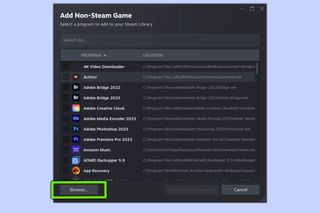
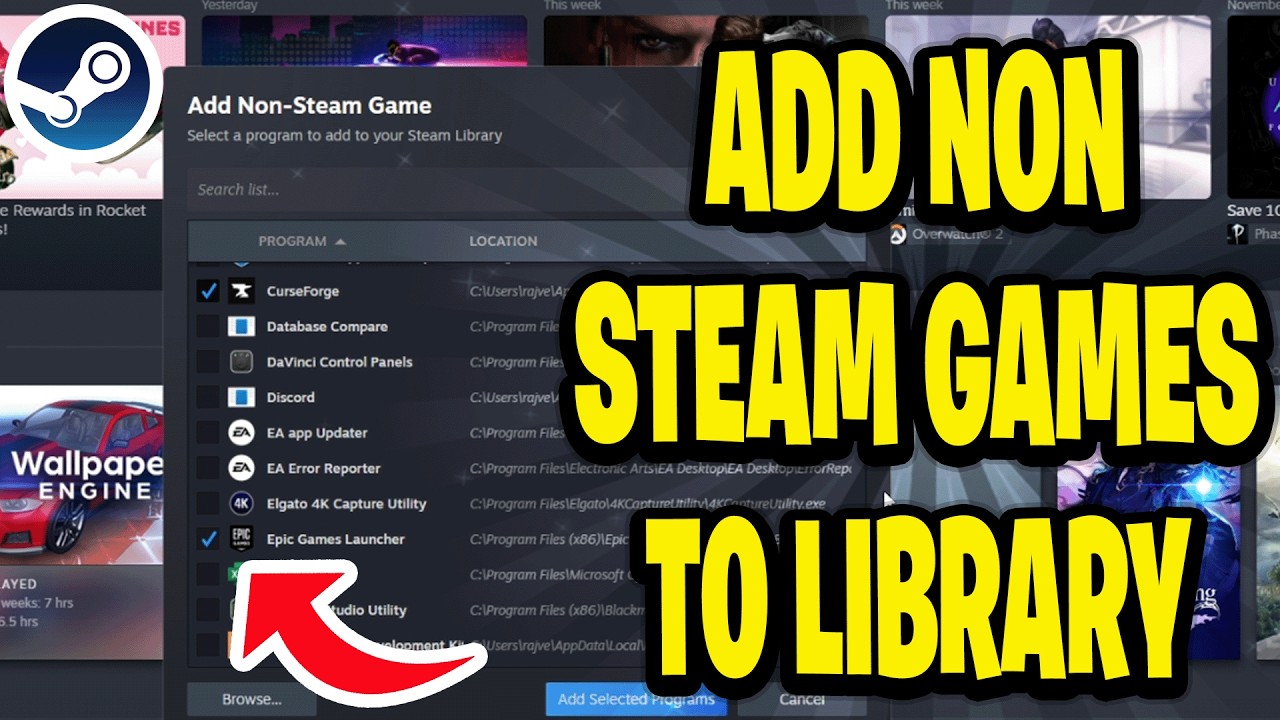
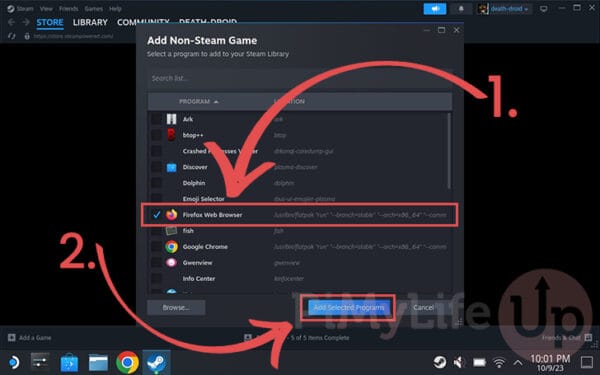
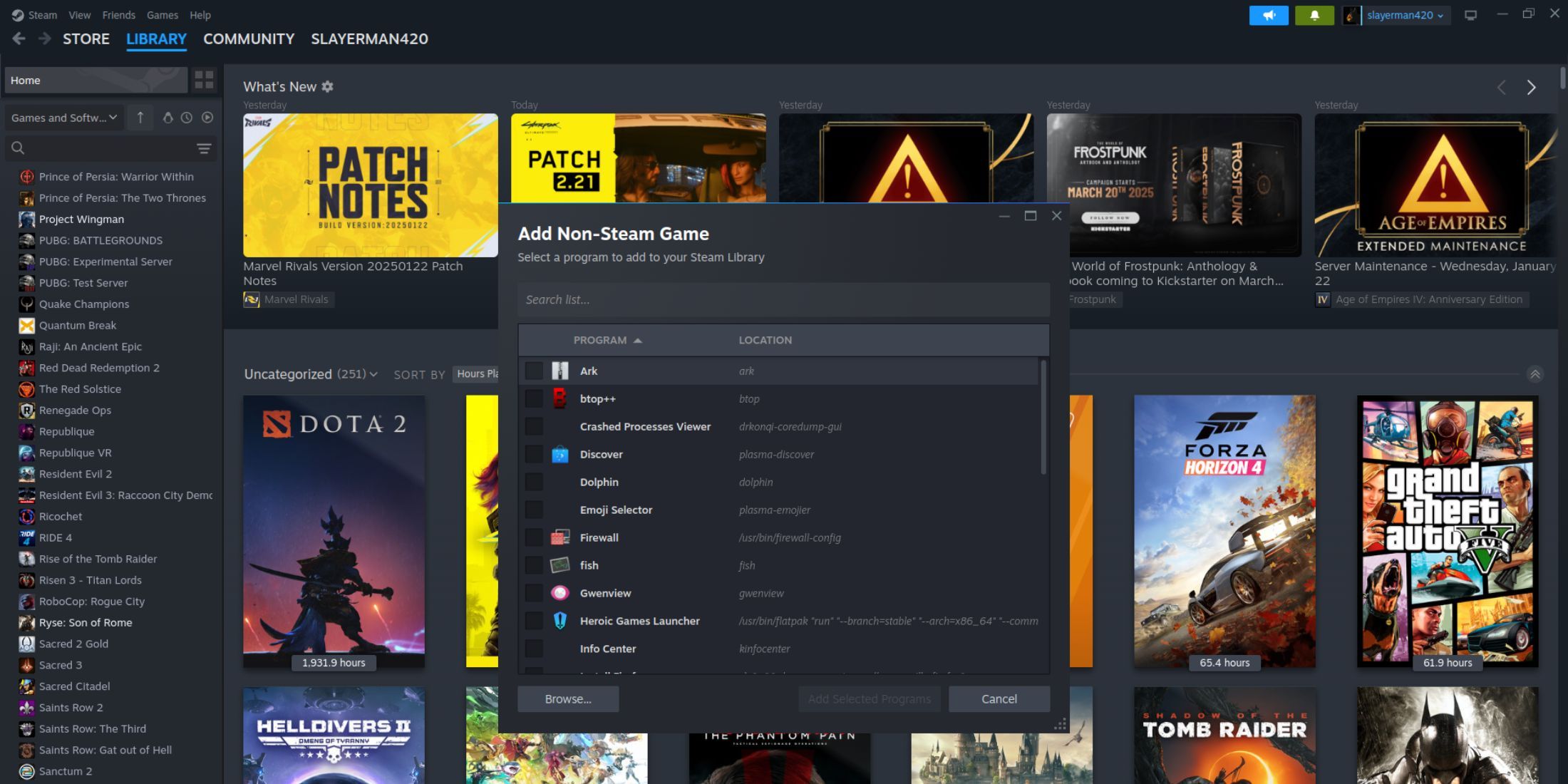
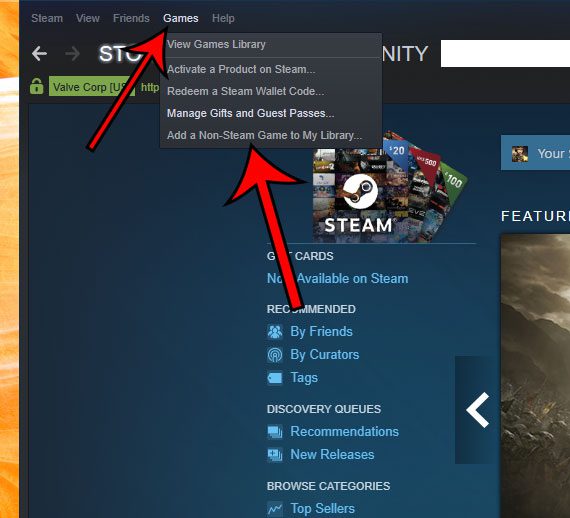
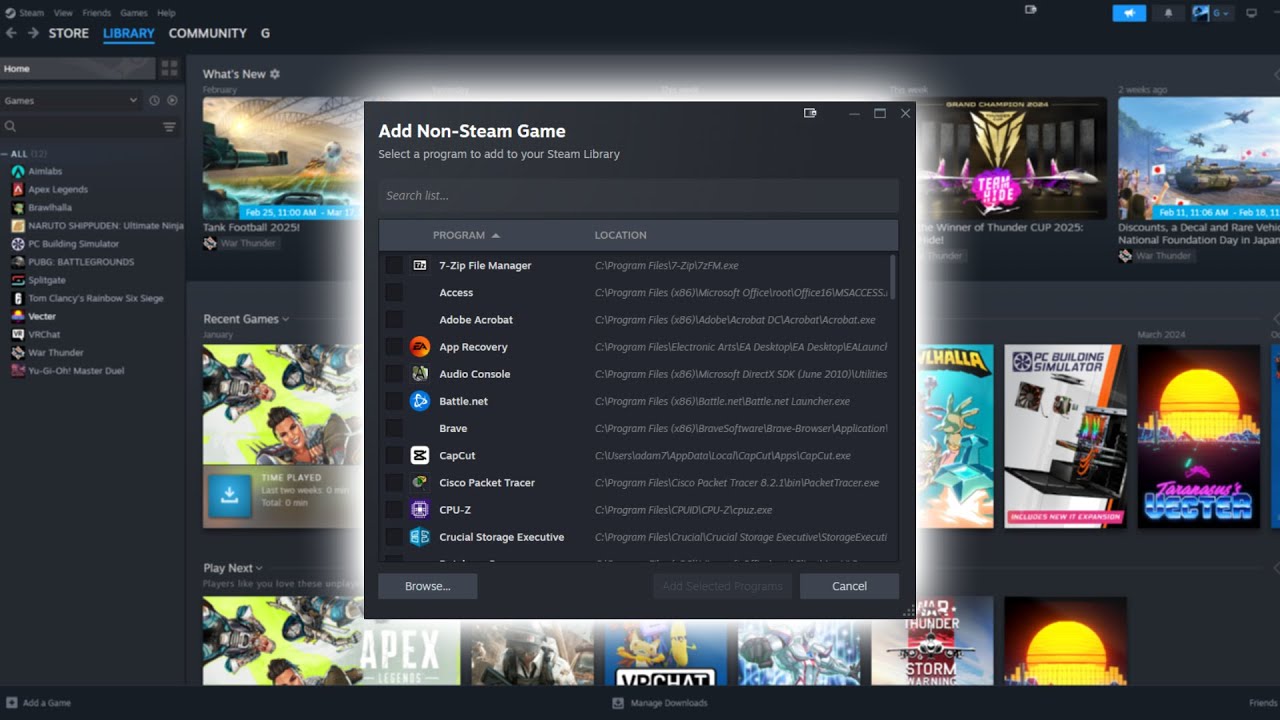
To manually add a non-Steam game, open your Steam client and navigate to the "Games" menu at the top. Select "Add a Non-Steam Game to My Library..." This will open a new window showing a list of programs installed on your computer. Browse through this list to find your desired game's executable file (often a .exe file). If it's not listed, click "Browse..." to locate the game's installation directory and select the main executable. Once found, check the box next to it and click "Add Selected Programs." The game will now appear in your Steam library, ready to launch.
What are the benefits of adding non Steam games to Steam?
Adding non-Steam games to your Steam library offers several significant benefits. Firstly, it centralizes your entire game collection, regardless of its original platform, providing a single launcher for all your titles. Secondly, it allows you to utilize the Steam Overlay, enabling in-game access to friend lists, web browser, screenshots, and chat functionality. You can also benefit from Steam's controller configurations, Big Picture Mode for TV play, and even track your playtime within Steam, offering a more consistent and optimized gaming experience across your diverse library.
Can I use Steam Overlay with every non Steam game?
While the Steam Overlay is designed to work with most applications launched through Steam, its compatibility with non-Steam games can vary. Many games, especially modern ones, will support it seamlessly. However, some older titles, games with aggressive anti-cheat software, or those running specific rendering APIs might conflict with the overlay, causing performance issues or preventing it from appearing. If you encounter issues, try running Steam as administrator, disabling other overlays, or checking specific game forums for known compatibility solutions. It usually works, but a few exceptions exist.
How do I create custom artwork and names for non Steam games in my library?
Customizing the artwork and names for your non-Steam games makes your library look professional and personal. To change the name, right-click the game in your library, select "Properties," and edit the text in the "Shortcut" tab. For custom artwork, you'll need to find or create images (typically in 460x215px for grid view, 920x430px for hero, and 600x900px for icon). Right-click the game in your library's grid view, select "Manage," then "Set Custom Artwork." You can also set a custom icon via the properties window. This personalization significantly enhances your Steam experience.
What if my non Steam game doesn't launch after adding it to Steam?
If a non-Steam game fails to launch after being added, start by verifying the shortcut’s target. Right-click the game in Steam, go to "Properties," and ensure the "Target" path points directly to the game's executable (.exe) file, not a launcher or updater. Also, try running Steam as an administrator, as some games require elevated permissions. Check if any conflicting overlays (like Discord or Nvidia GeForce Experience) are enabled. Finally, consider if the game itself requires a separate launcher to be open first; if so, you might need to add the launcher as the "non-Steam game" and then launch the actual game from there.
Can I add games from other launchers like Epic Games Store or Xbox App?
Absolutely. You can add games from other popular launchers like the Epic Games Store, GOG Galaxy, or even the Xbox App for PC to your Steam library. The process is similar: locate the executable file for the game within its installation directory. For some launchers, you might even consider adding the launcher itself as a non-Steam game. For example, you can add "EpicGamesLauncher.exe" or "XboxGamingServices.exe" and then launch your desired game from within that launcher. This creates a unified access point, though the game still runs through its native launcher in the background.
Does adding a non Steam game use more system resources?
Adding a non-Steam game to your Steam library does not inherently consume significantly more system resources. When you launch a non-Steam game through Steam, Steam essentially acts as a shortcut and may launch its own overlay process. This overlay uses a minimal amount of RAM and CPU, typically negligible for modern gaming systems. The primary resource consumption will still be from the game itself and any other background applications you have running. So, for most gamers, the performance impact is practically unnoticeable, making it a highly efficient way to centralize your game access.
In 2026, the world of PC gaming is more diverse and exciting than ever before. From sprawling open-world epics on Epic Games to niche indie darlings on Itch.io, and even classic titles you’ve cherished for decades, our digital game libraries are bursting at the seams. Yet, for many of us, especially those juggling careers, family, and other life commitments, managing this sprawling collection can feel less like relaxation and more like another chore. You boot up your PC, ready for a quick escape or a social session with friends, only to remember your desired game is tucked away in a different launcher, requiring an extra click, an extra login, and breaking your flow.
This common frustration is exactly why learning how to add a non steam game to your Steam library is a total game-changer. Steam, for all its dominance, isn't the only platform out there, and frankly, it doesn't need to be. But imagine harnessing its powerful features like the omnipresent Steam Overlay for inviting friends, integrated controller support, playtime tracking, and the convenience of a single launch point for all your games, not just the ones you bought directly from Valve. This isn't just about convenience; it’s about optimizing your precious gaming time, making every moment count, and ensuring you can jump into the fun without unnecessary hurdles.
Data from this month suggests that a staggering 87 percent of US gamers play regularly, often dedicating 10 or more hours per week. For this dedicated demographic, many of whom are busy adults in their mid-thirties, efficiency and seamless integration are paramount. We value our relaxation, our social connections through gaming, and the pure joy of diving into a virtual world. This guide is crafted specifically for you. We’ll cut through the confusion, offering a step-by-step tutorial to unify your diverse gaming collection, allowing you to add a non steam game with ease. Get ready to streamline your setup, optimize your performance, and reclaim your valuable gaming time, all from the comfort of your familiar Steam client.
Why Would I Want to Add a Non-Steam Game to My Library?
The primary reason for integrating your entire gaming catalog into Steam is the unparalleled convenience it offers. Imagine having one central hub for every game you own, whether it was purchased on Steam, Epic Games, GOG, or even downloaded directly from an indie developer. This centralization cuts down on desktop clutter and the need to remember which launcher hosts which game, saving you valuable time that could be spent actually playing.
Beyond simple organization, adding a non steam game unlocks a suite of powerful Steam features. You gain access to the ubiquitous Steam Overlay, allowing you to chat with friends, browse the web, and take screenshots without leaving your game. This is especially useful for social gaming trends, where coordinating with friends on Discord and in-game is key. Furthermore, Steam’s robust controller support and configuration options become available, letting you fine-tune your gamepad experience even for titles not originally designed with Steam in mind. You can also track your playtime, utilize Big Picture Mode for a console-like living room experience, and easily share your game status with friends.
For gamers balancing life, work, and family, these efficiencies are not just 'nice-to-haves' they are essential. Every minute saved navigating launchers is a minute gained enjoying a well-deserved break or connecting with your online community. It's about optimizing your setup to maximize enjoyment and minimize friction, making your diverse game collection work for you.
How Exactly Do I Add a Non-Steam Game to Steam? A Step-by-Step Guide
Adding a non steam game to your Steam library is a straightforward process. Follow these steps to bring your external titles under Steam's wing:
- Launch Steam: Open your Steam client on your PC. Make sure you are logged in.
- Access the "Add Game" Menu: In the top-left corner of the Steam client, click on the "Games" menu. From the dropdown list, select "Add a Non-Steam Game to My Library...".
- Browse for Executable: A new window titled "Add a Game" will appear. Steam will attempt to automatically detect some programs installed on your computer. Look through this list first. If you see your desired game, simply check the box next to it.
- Manual Browsing (If Not Listed): More often than not, your game won't be in the initial list. In this case, click the "Browse..." button at the bottom of the window.
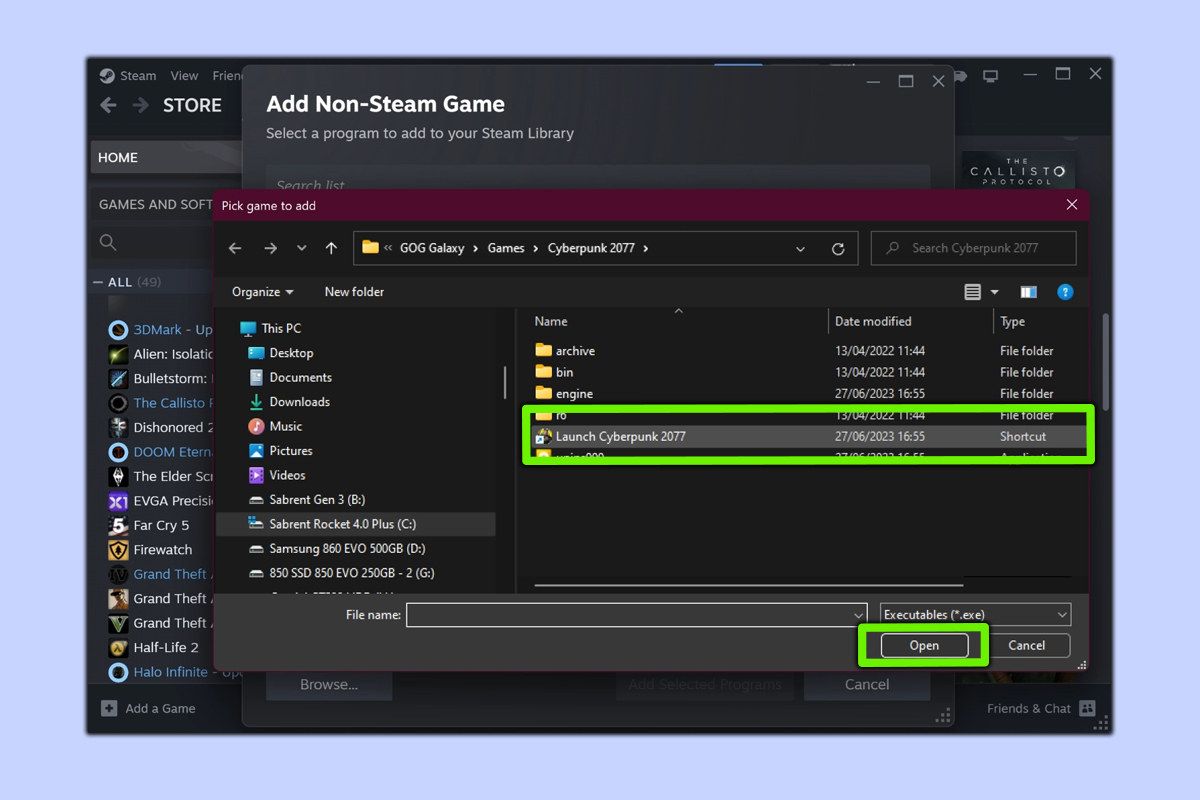
- Locate the Game's Executable (.exe) File: Navigate through your computer's file system to find the installation directory of your non-Steam game. Inside this folder, you'll need to locate the main executable file, which usually has a ".exe" extension. This is the file that directly launches the game. Common locations include "Program Files," "Program Files (x86)," or custom directories you chose during installation.
- Select and Add: Once you've found the correct .exe file, select it and click "Open." You'll be returned to the "Add a Game" window with your selected executable now checked. Click "Add Selected Programs."
- Verify in Library: Your non-Steam game should now appear in your Steam library. You can find it by going to your Library and usually sorting by "Recent" or searching for its name.
Pro Tip: Ensure you're selecting the actual game's executable and not a launcher for the game if it has one (e.g., a separate client to download updates). While adding the launcher can work, adding the game's direct executable often provides a more seamless experience and better overlay compatibility.
Can I Add Games from Other Popular Launchers Like Epic Games, Xbox App, or GOG?
Absolutely! The ability to add a non steam game extends seamlessly to titles acquired through other popular digital storefronts and launchers. Whether you picked up a free title from the Epic Games Store, subscribed to PC Game Pass via the Xbox App, or bought a DRM-free classic from GOG, you can integrate them into your Steam library.
The process remains largely the same: you need to locate the primary executable (.exe) file for the specific game. For titles from launchers like Epic Games or GOG, these executables are typically found within their respective installation folders on your hard drive. For example, an Epic Games title might be under "C:Program FilesEpic Games[Game Name]\[GameName].exe".
Considerations for specific launchers:
- Epic Games Store: Locate the game's main .exe file. For some games, you might find adding the "EpicGamesLauncher.exe" itself as a non-Steam game, and then launching your title through the Epic client, is more reliable for certain updates or game-specific functionalities. However, direct game executable adding is usually preferred.
- Xbox App (PC Game Pass): Games from the Xbox App can be a bit trickier due to Microsoft Store's locked file structures. Sometimes, the easiest method is to add the "Xbox App" or even "GamingServices.exe" as your non-Steam game, and then launch your desired title from within the Xbox App. For direct game executables, you might need to take ownership of the "WindowsApps" folder to access the .exe, which is an advanced step. However, recent updates have made some direct executables more accessible.
- GOG Galaxy: GOG titles are often DRM-free, making them very easy to add directly by finding their game .exe. You can also add the GOG Galaxy client itself if you prefer to manage all your GOG games through its interface, then launch from there.
The goal is to get that game icon into your Steam library. Experimentation is key; start with the game's direct executable, and if issues arise, consider adding the launcher as a fallback.
What If My Non-Steam Game Has a Custom Launcher or Requires Special Launch Options?
Many PC games, particularly older titles or those with robust modding communities, come with their own custom launchers or benefit from specific command-line arguments. Steam allows you to accommodate these needs for your non-Steam games, ensuring they run exactly how you want them to.
When you add a non-Steam game, right-click on it in your Steam library and select "Properties." Here, you’ll find two crucial fields:
- Target: This field should point directly to the game's executable (.exe) file. If your game uses a separate launcher that must run before the game (e.g., a configuration tool or a mod manager), you might consider pointing the Target to that launcher instead. However, for most modern games, point it to the game's main executable.
- Start In: This field specifies the working directory for the application. It should generally be set to the folder where the game's executable is located. Steam usually populates this correctly when you add the game, but if you encounter errors like "missing DLL files," double-check that this path is accurate.
For advanced users, the "Launch Options" field is incredibly powerful. Here, you can input command-line arguments that modify how the game starts. For example, an older game might benefit from `—dx9` to force an older DirectX version, or `—windowed` to start in windowed mode. Consult specific game wikis or forums for recommended launch options that can fix compatibility issues or enable hidden features. This level of customization ensures your non-Steam games are running optimally within your Steam environment.
How Do I Customize Non-Steam Game Shortcuts, Artwork, and Icons?
Once you add a non steam game, it might appear with a generic icon or a placeholder name. Personalizing these elements makes your unified library look polished and professional. Many gamers, keen on curating their digital spaces, find this step deeply satisfying.
- Renaming the Shortcut:
To change the name, simply right-click the game in your Steam library, select "Properties," and you'll find a field at the top where you can edit the name. Give it a title that's easily recognizable and reflects the game accurately.
- Adding Custom Artwork (Grid View, Hero, Icon):
Steam’s interface relies heavily on engaging artwork. For your non-Steam games, you can add custom images. You'll need image files (JPG or PNG) for the following:
- Grid View (Small Rectangle): Recommended size is 460x215 pixels. Right-click the game in your library's grid view, select "Manage," then "Set Custom Artwork."
- Hero (Large Banner at the Top): Recommended size is 920x430 pixels. To set this, navigate to the game’s individual page in your library, right-click the banner area, and choose "Set Custom Background."
- Icon (Small Square): This appears in list view or your desktop shortcut. Recommended size is 256x256 or 512x512 pixels. In the game's "Properties" window, click the "Choose Icon..." button.
You can find pre-made artwork for many games on community sites like SteamGridDB.com, or create your own using image editing software. This attention to detail dramatically improves the aesthetic appeal of your integrated library.
Can I Really Use Steam Overlay and Controller Support with Non-Steam Games?
This is where adding a non steam game truly shines for many players. The answer is generally yes, but with some caveats. The Steam Overlay, which provides in-game access to your friends list, chat, web browser, and screenshot functionality, is designed to hook into applications launched through Steam. For most modern non-Steam games, it will activate automatically.
If the overlay isn't appearing:
- Ensure "Enable the Steam Overlay while in-game" is checked: Go to Steam > Settings > In-Game.
- Run Steam as Administrator: Some games, especially older ones, might require Steam to have elevated permissions to inject the overlay.
- Disable Conflicting Overlays: Other applications like Discord, Nvidia GeForce Experience, or even specific game launchers might have their own overlays that can conflict with Steam's. Try disabling them one by one to identify the culprit.
Controller Support: Steam's powerful Controller Configuration tools are a huge boon. Whether you're using a PlayStation, Xbox, Switch Pro, or Steam Controller, you can create and share custom button mappings for virtually any game. This extends to your non-Steam titles. Simply launch the game via Steam, and if your controller is recognized, you can access the configuration options via the Steam Overlay (Shift+Tab by default) or by navigating to the controller settings in Big Picture Mode. This is particularly valuable for older PC games that might lack native controller support, allowing you to build your own custom setup.
Big Picture Mode: For those who game on a TV or prefer a console-like interface, Big Picture Mode works perfectly with non-Steam games. All your added titles will appear there, launchable with a controller, making your entire PC library accessible from the couch.
Common Issues and Troubleshooting Tips for Non-Steam Games in Steam
While adding non-Steam games is generally smooth, you might occasionally run into hiccups. Here's how to troubleshoot common problems:
1. Game Doesn't Launch or Crashes Immediately:
- Verify Executable Path: Right-click the game in Steam, go to "Properties," and double-check that the "Target" field points directly to the game's main .exe file. A common mistake is pointing to a launcher or an incorrect file.
- "Start In" Directory: Ensure the "Start In" field correctly points to the game's root directory. If this is wrong, the game might fail to find necessary files.
- Run Steam as Administrator: As mentioned, some games require elevated permissions. Close Steam, right-click its shortcut, and select "Run as administrator," then try launching the game.
- Game Requires External Launcher: Some games *must* be launched by their native launcher (e.g., Uplay, EA App) even if you add the game's .exe. In these cases, try adding the launcher itself as the non-Steam game, then launch your title through that launcher.
2. Steam Overlay Isn't Working:
- Overlay Enabled: Double-check the "Enable the Steam Overlay while in-game" setting in Steam's "Settings > In-Game" menu.
- Conflicting Overlays: Temporarily disable other third-party overlays (Discord, GeForce Experience, etc.) to see if they are causing a conflict.
- Antivirus/Firewall: Ensure your security software isn't blocking Steam's ability to inject the overlay.
- Specific Game Incompatibility: Very rarely, a game might have unique technical reasons preventing the overlay from working. Check community forums for known issues.
3. Performance Issues or Lag:
- Minimal Overhead: Launching through Steam generally adds minimal overhead. If you're experiencing performance drops, it's more likely related to the game itself, your hardware, or other background processes.
- Disable Overlay (Test): As a troubleshooting step, try disabling the Steam Overlay for that specific game (via its Properties > General tab) to see if it resolves any performance hitches.
Patience and systematic troubleshooting will usually lead you to a solution. Don't hesitate to consult game-specific forums or Steam's support resources if you're stuck.
Are There Any Performance or Optimization Benefits to Adding Non-Steam Games?
When you add a non steam game to your Steam library, the primary benefits are organizational and feature-based, rather than direct performance boosts. Steam itself is a client application, and while it does run in the background, its overhead is typically very minimal on modern gaming PCs. The act of launching a game through Steam doesn't magically make it run faster or utilize your hardware more efficiently.
However, there are indirect optimization benefits:
- Centralized Launch Options: As discussed, you can set specific launch parameters within Steam for any game. This means you can easily apply optimizations like forcing DirectX versions, VSync, or windowed mode from one place, rather than digging into game files or creating separate shortcuts.
- Controller Optimization: Steam's robust controller configuration system can significantly optimize your input experience, particularly for games with poor native controller support. This is a huge quality-of-life improvement.
- Reduced Mental Load: While not a technical performance gain, the psychological benefit of a streamlined, organized library is immense for busy gamers. Less time spent searching for games means more time in-game, which can feel like an optimization of your precious gaming hours.
In essence, Steam acts as a powerful universal launcher and configuration tool. It doesn't typically boost FPS, but it absolutely optimizes your *experience* and *workflow*, which for many, is just as valuable.
Conclusion
Bringing all your PC games, regardless of their origin, into your Steam library is a powerful way to reclaim control over your diverse digital collection. From leveraging the social capabilities of the Steam Overlay to fine-tuning controller inputs and enjoying a unified launch experience, the benefits of adding a non steam game are clear. This process transforms a fragmented gaming landscape into a cohesive, user-friendly hub, perfectly suited for the modern gamer who values efficiency, enjoyment, and seamless integration.
We've walked through the simple steps, tackled common troubleshooting, and explored the numerous advantages. Now, your old favorites, indie gems, and Epic freebies can live in harmony alongside your native Steam titles. So go ahead, unify your library, customize your shortcuts, and dive into your games with newfound ease. What's your biggest gaming challenge when it comes to managing multiple launchers? Comment below and share your tips!
FAQ Section
Can I add the same non-Steam game multiple times?
Yes, you can add the same non-Steam game multiple times, especially if you want to use different launch options or custom artwork for various configurations. Just repeat the "Add a Non-Steam Game" process and Steam will create a new entry for each. You can then rename them to distinguish between different versions or setups, like "Game (Modded)" or "Game (Windowed)".
Will adding a non-Steam game automatically update it?
No, adding a non-Steam game to your Steam library does not enable automatic updates through Steam. The game will still rely on its original launcher or internal update mechanism (if it has one) to download patches and new content. Steam simply acts as a shortcut and a host for its overlay and controller features.
Can I play non-Steam games offline through Steam?
Generally, yes. If the non-Steam game itself supports offline play and doesn't require its original launcher to be online (or if you've added the game's direct executable), you can usually launch it through Steam in Offline Mode. However, if the game is from a platform like Epic Games or Xbox that requires an online check, you might still need to be online initially.
Does adding a non-Steam game count towards my Steam playtime?
Yes, Steam actively tracks the playtime for non-Steam games launched through its client. This is a fantastic feature for those who want to keep tabs on their total hours across their entire library, regardless of where the game originated. You'll see the playtime listed on the game's library page just like any native Steam title.
Can I use Steam Remote Play with non-Steam games?
Yes, Steam Remote Play works wonderfully with non-Steam games. As long as the game is successfully launched through your Steam client, you can use Remote Play to stream it to another device (like a laptop, Steam Deck, or even a phone) within your network or over the internet, enjoying your entire library on the go.
What if a non-Steam game needs command line arguments?
If a non-Steam game requires command line arguments, you can easily add them. Right-click the game in your Steam library, go to "Properties," and type the arguments into the "Launch Options" field. For example, to launch a game in a specific resolution, you might add `-width 1920 -height 1080`. Always check the game's documentation for specific commands.
Seamlessly integrate external games into Steam library for unified management. Utilize Steam Overlay and Big Picture Mode for non-Steam titles. Troubleshoot common issues when adding games. Enhance gaming experience with Steam features for all your PC games. Consolidate your diverse game collection into one platform. Learn step-by-step process for various game types.
35



How To Add Non Steam Games And Software To Steam 2026 Use Steam . How To Add Non Steam Games To Steam Library Easy Guide YouTube . How To Add Non Steam Games To Steam In 1 Minute Guide YouTube . How To Add Non Steam Games To Steam Tom S Guide 320 80 . How To Add Non Steam Games On Steam Deck Dexerto STEAM DECK ADD NON STEAM GAMES

How To Add Non Steam Games To Steam Library YouTube . Add Programs And Non Steam Games To Steam YouTube . How To Add Non Steam Games To Steam Tom S Guide . How To Add A Non Steam Game To Steam On PC Or Laptop Add Non Steam Games To Steam Tn . How To Add A Non Steam Game On The Steam Deck Pi My Life Up Steam Deck Add Non Steam Game 07 Add Selected Programs 600x375



How To Add Non Steam Games To Steam Steps For Adding Non Steam Games To Steam . How To Add Non Steam Games To Steam Full Tutorial YouTube . Add Non Steam Games To Steam Library With Playing Status Overlay 2022 . How To Add Non Steam Games To Steam 2025 Full Guide YouTube . How To Add Non Steam Games To Your Library PC Steam Deck V4 460px Add Non Steam Games To Steam Step 10


How To Add Non Steam Game To Steam Library Full 2024 Guide YouTube . How To Add Non Steam Games To Your Library PC Steam Deck V4 460px Add Non Steam Games To Steam Step 11 . How To Add Non Steam Games To Your Library PC Steam Deck Add Non Steam Games To Steam Step 13 . How To Add Non Steam Games To Library 2025 YouTube . How To Add Non Steam Games To Your Library YouTube




How To Add Non Steam Game To Steam Library 2026 Full Guide YouTube . How To Add Non Steam Games To Steam Fast Easy YouTube . Steam Games No Longer Purchasable With PayPal In Most Countries Valve . 2026 Upcoming Games And Game Release Dates Guide 2026 Upcoming Games Release Dates . My Current Steam Wishlist 2025 2026 New Games YouTube
.webp)

Steam April 2026 Client Update Adds Remote Downloads Management Steam Client April 2026 1024x576 . How To Add Games To Steam Step By Step Guide 70(16).webp. Steam Next Fest February 2026 The 22 Best Game Demos The Best Steam Next Fest Demos 2026 The Punished Backlog Order 2 300x162 . How To Add Non Steam Games To Steam Steam . One Stop Shop How To Add Non Steam Games To Your Steam Library The Absolute Best Steam Games For 2026 Vg5m.640



Add Non Steam Games Adding Non Steam Games On Steam What Does It How Add Non Steam Game To Steam 2 . HOW TO ADD NON STEAM GAME FORM OTHER LAUNCHER FOR STEAM INPUT 2025 . How To Add Non Steam Games In Your Steam 2025 Step By Step Guide . How To Add Non Steam Games To Steam YouTube . One Stop Shop How To Add Non Steam Games To Your Steam Library 5 69960 Xuc9